

Blackboard Ultra
Blackboard Ultra Course is a new course view that offers a modern, intuitive, and personalized interface. With a simplified workflow and an accessible, fully responsive design, Ultra Course View will make it easier to teach and learn from any device.
What's new in Blackboard Ultra - Updates
Although Ultra Course View has been available since 2014, Anthology remains committed to continuously enhancing Blackboard. Each month, new features are released, ranging from significant functional updates to minor enhancements.
Below, you'll find a breakdown of the most recent features released. For more comprehensive information, you can also explore the full Release Notes for Learn SaaS or the Archived Learn SaaS Release Notes for older updates.
All Users
-
Require confirmation for updated email addresses: Blackboard now permanently requires users to verify email address changes, ensuring secure updates and uninterrupted delivery of important communications. This upgrade removes the feature flag for this functionality and strengthens account integrity for all users.
-
Enhanced threading experience in Course Messages: Course Messages now automatically organizes new messages into existing conversations, or creates a new one when needed. This streamlines communication and reduces fragmented threads. We’ve removed reply-blocking to accommodate this feature. Additionally, displaying of the Rich Text Editor and Send button now persist on mobile and hand-held devices to improve usability across devices.
Instructors and Students
-
Increased file size limit to 25 MB for assignments and tests: SafeAssign now supports submissions up to 25 MB, reducing failures caused by the previous size restriction and better accommodating larger documents with complex formatting. Support for the same 25 MB limit in Direct Submit is planned for April. Existing SafeAssign functionality and reports continue to operate as before.
-
Add a second participation requirement and due date in Discussions: Instructors can now set two separate due dates with distinct participation requirements for Discussions, offering clearer expectations and more structured engagement. Students benefit from transparent progress tracking and updated indicators as they complete requirements across both due dates.
-
Video Studio: Generate thumbnail automatically: Video Studio now auto‑generates a thumbnail image from each new recording, giving viewers a clear visual preview and helping instructors and students quickly recognize video content before opening it. This enhancement creates a more polished viewing experience while reducing effort for instructors since thumbnails are created automatically.
-
Video Studio: Enhance timer to show time left during recording: Video Studio now displays the remaining recording time in both full and minimized views, giving instructors and students clearer pacing to reduce the risk of unexpected cut‑offs during recording. This improvement improves time management so users can stay focused on creating their content.
Instructors
-
Question Title field relocated: The Question Title field now appears only when the metadata option is enabled. This update reduces accidental use of the title field when instructors only intend to enter question text. The workflow remains consistent with other optional metadata fields.
-
Generate Knowledge Checks with AI: Instructors can now generate multiple choice Knowledge Checks in Documents using AI. Questions are created based on document content and selected course items, and instructors can choose and edit the generated options. Existing manual Knowledge Check workflows remain unchanged.
-
Partial credit limits removed for Multiple Choice and Multiple Answer: Partial credit values for answer options no longer need to total 100%. Instructors can assign values freely within the allowed range, and the system continues to provide warnings without blocking setup. Existing behaviors for negative marking and regrading remain supported.
-
Anonymous grading by question: Flexible Grading now supports anonymous grading in Question View. Student names, avatars, and IDs are replaced with anonymous identifiers while grading. All actions available in non‑anonymous Question View remain available in anonymous mode.
-
Metadata analysis layer in Originality Report: SafeAssign now includes a new metadata analysis layer within the Originality Report. In addition to traditional text matching, instructors can access contextual insights in the new Document Properties section in the report summary.
Administrators
-
Support subject creation: Blackboard now supports importing Subjects through SIS integrations. This update keeps Subject data aligned with institutional systems and reduces manual setup. Flat file, API‑based, and LIS workflows are supported.
-
Course Catalog: Batch edit offering availability: Managers can now batch edit offering availability on the Offering Management screen instead of updating each offering individually. This feature saves time by allowing managers to update multiple offerings at once.
-
Performance Results Scale: Institutions can begin using the Performance Results Scale and Key Assessment Indicator, providing a shared framework to interpret, aggregate, and visualize learning outcome performance consistently across assessments. Additionally, Outcomes for Blackboard will be available March 2026. The release of Outcomes for Blackboard is not aligned with Blackboard's March 4000.10 release. To prepare for Outcomes for Blackboard, please visit help.anthology.com/outcomes.
Ultra Support
Self-help Resources
Explore a number of resources to help you navigate Blackboard Ultra. Whether you are a new user or looking for answers to common questions, you’ll find step-by-step guides, video tutorials, and more.
Training
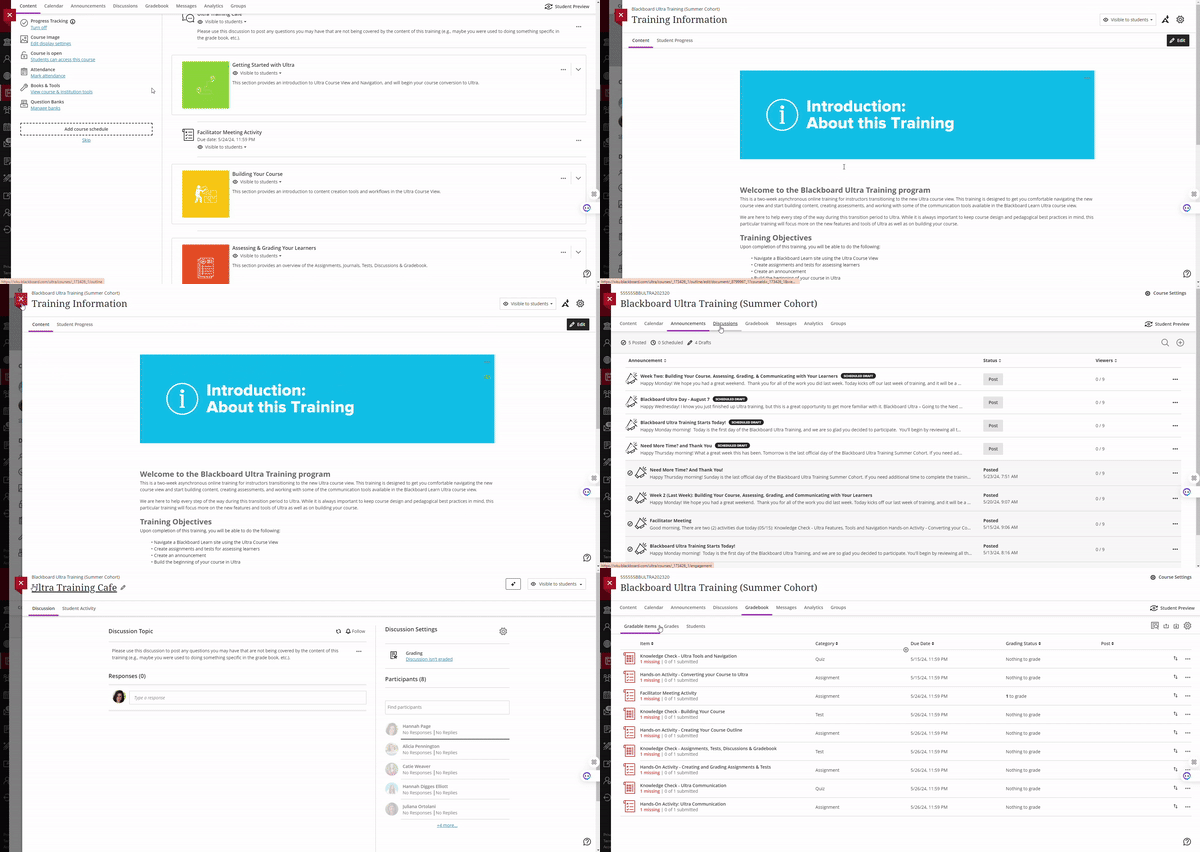
The ITS: Blackboard Ultra Training is a completely self-paced training through ITS that focuses on the foundations for using our learning management system and associated tools. To self-enroll in this training, you must log into Blackboard, select My WKU Bb and scroll down to the ITS: Blackboard Ultra Training link. Clicking on the link will enroll you in the training that you will then find within the Courses tab in the Blackboard menu. Without completing this training, you won’t be able to create a Backboard course site.
Need Help?
If you need assistance with Blackboard Ultra please contact ITS at 270-745-700, or submit a support ticket. You can also reach out to CITL at citl@wku.edu.
Some of the links on this page may require additional software to view.